

macOS 26 & iOS 26 Problems: What Springfield, MA Users Need to Know (and How to Fix Them)
Apple's fall 2025 updates brought battery drain, app crashes, Wi-Fi drops, and touchscreen lag. Here's what's actually happening on iOS 26 and macOS 26, and how to fix each issue.
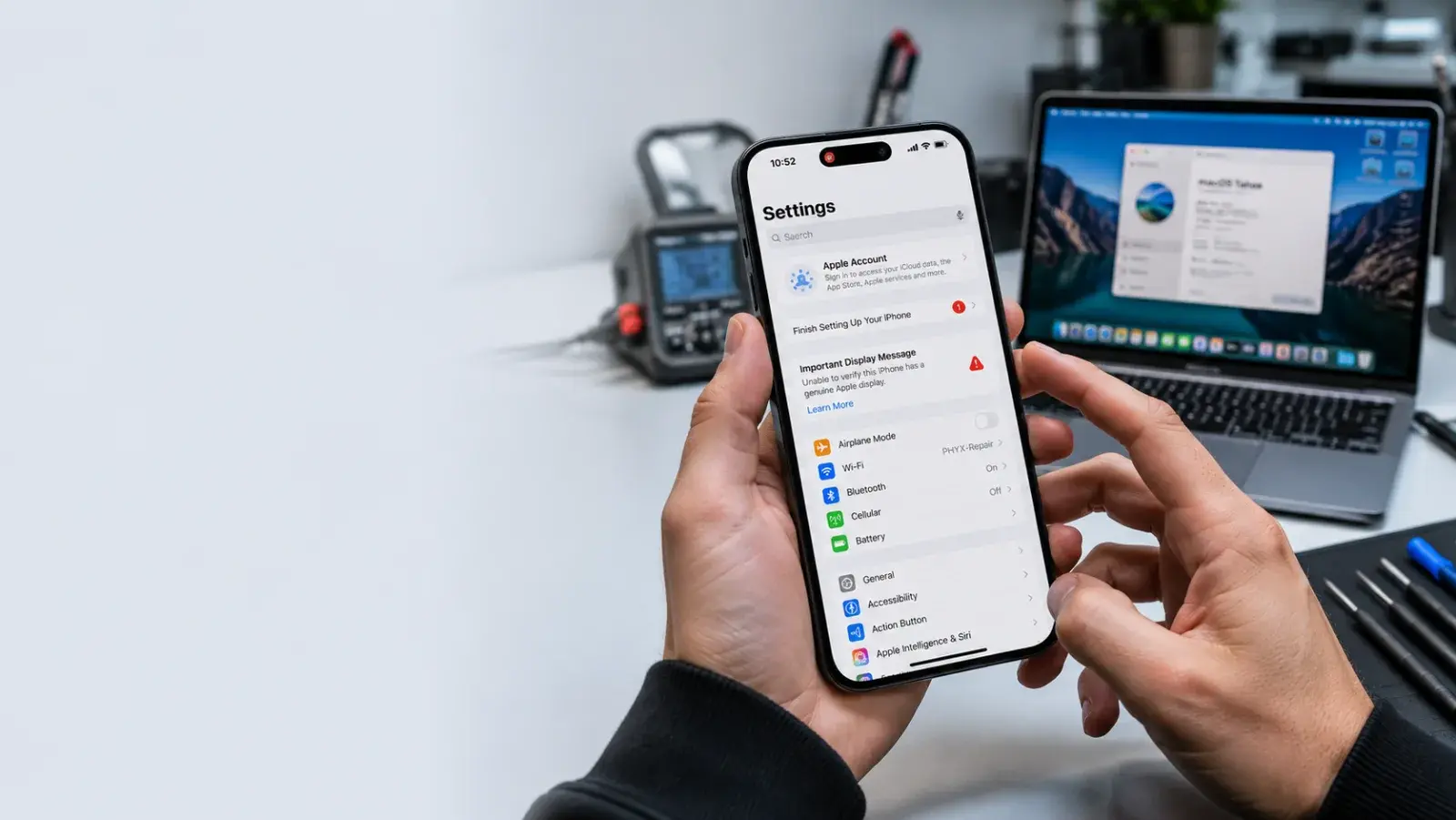
Apple's fall 2025 updates brought new AI features and security patches. They also brought growing pains.
Since September, we've seen consistent problems at PHYX Repairs in Springfield from customers running iOS 26 on iPhones or macOS 26 on Macs. Not everyone hits these issues, but they're common enough to plan for.
This guide covers the problems we hear about most, what causes them, and how to fix them yourself. Some issues resolve on their own after 48–72 hours. Others need intervention.
The Most Common iOS 26 and macOS 26 Problems
Battery Drain (Both iOS 26 and macOS 26)
What users report: Battery drains 15–25% faster than before the update, especially within the first 48 hours.
Why it happens: New AI processing, system indexing, and background services run during initialization. Apple's software has to catalog everything and optimize it.
How to fix it:
- Wait 72 hours. Most users see improvement by day three as indexing completes.
- Turn off background app refresh for apps you don't need. Go to Settings (iPhone) or System Settings (Mac), find Background App Refresh, and toggle off apps like social media or news apps.
- Lower screen brightness or enable auto-brightness.
- Turn off Location Services for apps that don't truly need it.
- Close apps you're not using.
If drain continues after one week: Your battery may be failing independently of the update. Bring your device to PHYX Repairs. We can test battery health (takes 10 minutes) and replace it same-day if needed.
App Crashes and Freezing
What users report: Apps crash on launch or freeze mid-use after updating.
Why it happens: The app was built for an older version of iOS or macOS. Compatibility breaks when the system changes.
How to fix it:
- Check the App Store (iPhone) or App Store (Mac) for an update to the crashing app. Developers release patches within 2–5 days of macOS/iOS updates.
- If no update exists, uninstall and reinstall the app. Go to App Store > Your Name (iPhone) or Launchpad (Mac), delete the app, then reinstall.
- If the app still crashes and it's critical, contact the developer's support. Ask if they've tested on iOS 26 or macOS 26 yet.
- In the meantime, use an alternative app if possible.
If you can't wait: Bring the device to PHYX Repairs. We can research alternatives or help you report the issue to the developer.
Wi-Fi and Bluetooth Disconnections
What users report: Wi-Fi drops for 5–10 seconds randomly. Bluetooth headphones disconnect and reconnect.
Why it happens: The new software initializes network drivers differently. Apple usually patches this in 26.1 or 26.2 (released within 4–6 weeks). Apple's iOS 26 update details list what each point release fixes.
How to fix it:
For iPhone or Mac:
- Restart the device (turn it off and back on).
- Turn Wi-Fi off and on again. Wait 5 seconds between each action.
- Forget the Wi-Fi network: go to Settings > Wi-Fi (iPhone) or System Settings > Wi-Fi (Mac), find your network, tap Forget, then rejoin and re-enter your password.
- Restart your router (turn it off for 30 seconds, turn it back on).
For Bluetooth:
- Unpair the device (iPhone: Settings > Bluetooth, tap your device, select Forget; Mac: System Settings > Bluetooth, click the X next to the device).
- Restart both the iPhone/Mac and the Bluetooth accessory (headphones, mouse, etc.).
- Re-pair them.
Persistence check: If the issue happens every day in the same place, it's likely a network problem, not the update. Your router or internet provider may be the culprit.
If this continues: Bring the device in. We can run network diagnostics and check hardware.
Touchscreen Lag or Unresponsiveness (iOS 26)
What users report: Tapping the screen feels delayed. Scrolling stutters. Typing is sluggish.
Why it happens: iOS 26 processes heavy AI tasks on older hardware, consuming CPU and GPU resources. On older iPhones, this manifests as lag.
How to fix it:
- Restart your iPhone (press Volume Up, press Volume Down, hold Side button until restart appears).
- Go to Settings > General > iPhone Storage. Delete apps you haven't used in 3+ months.
- Clear your browser cache: Settings > Safari > Clear History and Website Data.
- Turn off live widgets (the animated tiles on your home screen). Long-press the home screen > Edit, tap the minus sign next to live widgets.
- Reduce motion: Settings > Accessibility > Display & Text Size > Reduce Motion (turn on).
If lag persists: Your iPhone's storage may be critically full. Bring it in. We can back up your data and free up space safely.
Storage Warnings After Update
What users report: After updating, available storage suddenly dropped from 10 GB to 2 GB.
Why it happens: iOS and macOS use temporary cache files during updates. These files should delete automatically, but sometimes they linger.
How to fix it:
For iPhone:
- Go to Settings > General > iPhone Storage.
- Scroll to see which apps consume the most space. Delete old photo/video apps or games you rarely use.
- Try to install a small free app (like Notes). If it installs, the cache cleared. If it fails, you need more space.
For Mac:
- Go to System Settings > General > Storage.
- Click Recommendations and follow the prompts to remove old files, empty Trash, and delete duplicate files.
- Manually delete old downloads (Go > Downloads in Finder). Apple's macOS 26 update details explain how the new Storage recommendations work.
Comparison Table: Common Issues and Fixes
| Issue | Affected Devices | Time to Fix | DIY or Expert? |
|---|---|---|---|
| Battery drain | iPhone 11+, older Macs | 3–7 days | DIY (wait), then expert if persistent |
| App crashes | All iOS 26/macOS 26 devices | Minutes | DIY (reinstall) or expert (alternatives) |
| Wi-Fi drops | All iOS 26/macOS 26 devices | 10–30 min | DIY (toggle/forget network) |
| Bluetooth disconnect | iPhone, Macs, accessories | 5–10 min | DIY (unpair/repair) |
| Touchscreen lag | iPhone 11 and older | Hours–days | DIY (restart, delete apps) or expert |
| Storage full | All devices | Minutes–hours | DIY (delete files) or expert (backup first) |
When Should You Bring Your Device to PHYX Repairs?
Definitely bring it in if:
- Battery drains dramatically after 5+ days post-update
- An app critical to your work crashes repeatedly and has no workaround
- Wi-Fi or Bluetooth won't reconnect even after restart and toggling
- Your device is unresponsive or constantly slow, not just during indexing
- You can't free up enough storage to proceed
- Update crashed mid-installation and your device won't boot
You can usually handle it yourself if:
- Battery drain is visible but manageable within the first 48 hours
- One non-critical app crashes but alternatives exist
- Wi-Fi toggled on/off and fixed the issue
- Device is slightly slow but boots normally
When to Wait, When to Update
Wait for macOS 26.2 / iOS 26.2 if:
- Your device is more than 5 years old
- You rely on an older, niche app that hasn't confirmed compatibility
- You're risk-averse and prefer stability over new features
Apple typically releases 26.2 within 6–8 weeks of the initial release. Stability improves measurably.
Update now if:
- Your device is 2020 or newer
- You have 20+ GB free (iOS) or 15+ GB free (macOS)
- You want the latest security patches
- You're comfortable troubleshooting minor issues
Recovery: What If Your Device Won't Start After Update?
Corrupted updates are rare but fixable.
For iPhone:
- Plug into a computer with Finder or iTunes open.
- Let it sit for 5 minutes (sometimes it recovers automatically).
- If it doesn't recover, your Mac/PC will prompt you to restore iOS 26. Click Restore. Data may be lost.
Bring the iPhone to PHYX Repairs in Springfield if Finder doesn't recognize it. We have specialized recovery tools that often preserve your data.
For Mac:
- Restart the Mac in Recovery Mode: power off, then power on while holding Command + R.
- When the Recovery Mode menu appears, choose Reinstall macOS.
- Follow the prompts. If it fails, you'll need expert help.
Bring the Mac to PHYX Repairs. We can access deeper recovery tools and restore your system without data loss in most cases.
The Bottom Line
iOS 26 and macOS 26 are stable overall. Most users experience no problems. But if you encounter one of the above issues, know that they're usually fixable and temporary. Apple's security updates page is worth checking for the latest patch notes.
Wait 72 hours before worrying. Most problems resolve during initialization.
If a problem persists beyond one week, bring the device to PHYX Repairs. We can diagnose, repair, or replace hardware quickly.
Contact PHYX Repairs for Troubleshooting and Repairs
Stuck with an iOS 26 or macOS 26 problem? We've seen and fixed them all.
Bring your device in for free diagnostics. We'll identify the problem, explain your options, and give you a timeline and estimate before we start work.
PHYX Device Repair
95 Mill Street, Springfield, MA 01108
(413) 234-4313
Hours:
Monday–Friday: 10:00 AM–7:00 PM
Saturday: 12:00 PM–7:00 PM
Visit us online: phyx.me
We've been serving Springfield and Western Massachusetts—including Chicopee, West Springfield, Agawam, Longmeadow, Westfield, Ludlow, Palmer, and Hamden—since September 2015. Most repairs finish same-day. If something doesn't work right after we repair it, we take another look. We stand behind our work.
Voted Best Phone & Computer Repair Shop 2026 by Valley Advocate Readers' Poll. 4.5 out of 5 stars from 769 verified Google reviews.
FAQ
Is it safe to update to iOS 26 or macOS 26 given these problems?
Yes. These issues affect a minority of users and are not permanent. Most resolve within 72 hours. The security patches in iOS 26 and macOS 26 are worth the temporary headaches. Delaying updates exposes you to security vulnerabilities.
How long do I wait before bringing my device to PHYX Repairs?
Give the update 72 hours to fully initialize. Battery drain and system slowness usually improve after three days. If a problem persists after one week—or is severe from day one (won't start, constant crashes)—bring it in immediately. For minor issues, a few days of patience often resolves them.
Can PHYX Repairs roll back my device if iOS 26 or macOS 26 isn't working?
For iPhone: we can try, but it's difficult without Apple's authorization. If data loss is acceptable, we can restore to iOS 18, but you lose everything post-backup. For Mac: rolling back is harder still. Plan ahead by backing up before you update.