

LIAN LI UNI FAN SL WIRELESS (PRODUCT REVIEW / BUYER GUIDE)
Lian Li UNI Fan SL Wireless: What PC Builders Should Know Before They Buy
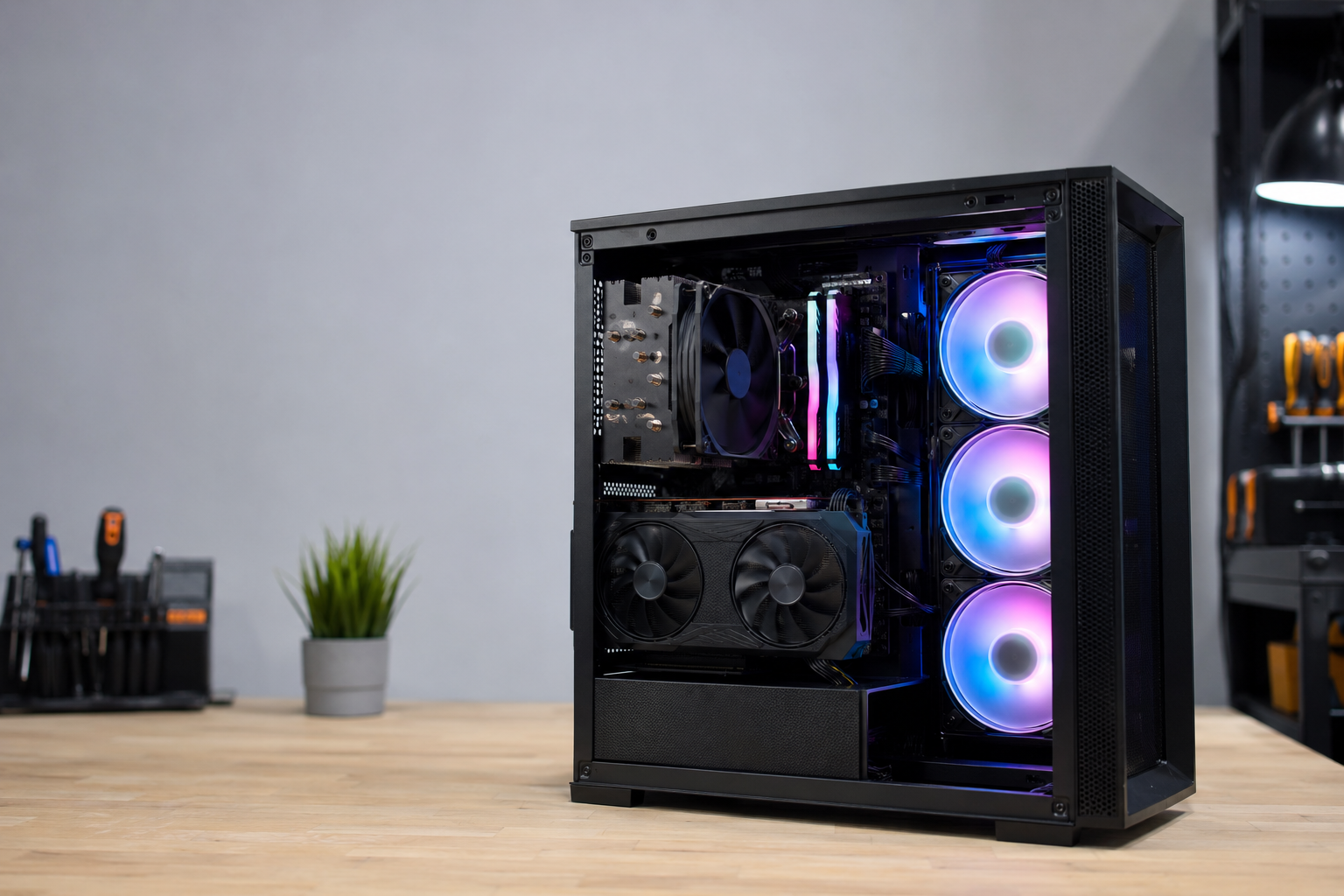
The Lian Li UNI Fan SL Wireless promises cleaner builds with fewer cables. You control fan speed and RGB lighting through software instead of a tangle of wires. It sounds simple. The setup surprises a lot of first-time buyers.
"Wireless" here does not mean no cables. The fans still draw power through a physical connection. Only the speed and lighting controls travel wirelessly. If you miss that detail, and your new fans may seem dead out of the box.
This guide covers how these fans really work, where builders get stuck, and whether they fit your rig. If you are planning a build it can save you an afternoon of troubleshooting.
How the Wireless Control Works
The SL Wireless uses a 2.4GHz L-Wireless controller. It plugs into your motherboard and sends speed and lighting commands to the fans. That removes the extra data cables older UNI Fan models required.
Power still runs through a 4-pin PWM cable to the motherboard. The fans spin the moment they receive power. The wireless signal handles control only, not electricity.
One catch trips up many builders. The LCD version still needs a USB 9-pin cable for its screen. Only the LED version runs its controls fully cable-free.
Setup Mistakes That Stop the Fans From Responding
Most "dead fan" complaints trace back to setup, not defective hardware. A few checks solve the majority of problems.
Seat the L-Wireless controller firmly on a working motherboard header.
Confirm each fan group clicks into the daisy-chain connector.
Install the L-Connect 3 software before expecting any control.
Watch for a flickering white light at startup, which signals weak power.
Add the included SATA adapter if your board delivers low power.
That flickering white light matters. Lian Li flags it as a sign of insufficient power from the motherboard port. Move the cable to another 4-pin header, or use the SATA adapter from the triple pack.
LED vs LCD: Which Version Fits Your Build
Two versions share the same interlocking design. The difference comes down to cables and whether you want a screen.
SL Wireless LED
Fully cable-free control, no USB needed.
No built-in screen.
Spins up to about 2000 RPM.
Best for clean airflow zones.
SL Wireless LCD
Wireless control, but the screen needs a USB cable.
Adds a 1.6-inch IPS screen at 400 x 400 resolution.
Spins up to about 1900 RPM.
Best as a monitoring or display piece.
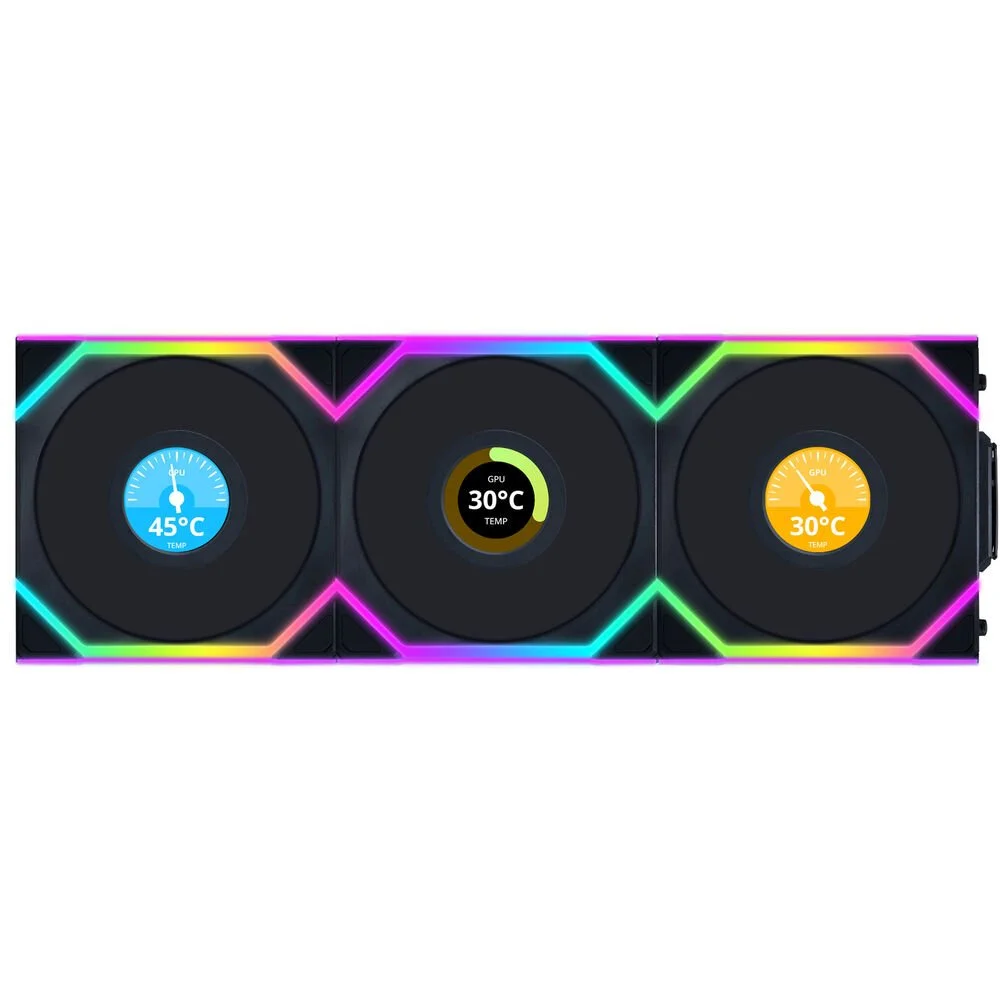
Both versions interlock in the same cluster. You can mix LED and LCD fans in one group, up to four fans per group. The LCD version adds a 1.6-inch screen for temperatures, GIFs, or custom images.
The trade-off is cables. The LCD screen needs that USB connection, which chips away at the clean look. Many Springfield and Chicopee builders run LED fans for airflow and add one LCD fan as a display piece.
LIAN LI UNI FAN SL WIRELESS
How to Use L-Connect 3, Lian Li's Control Software
Lian Li controls these fans through free software called L-Connect 3. You download it from Lian Li's site and install it on Windows. The fans stay on default settings until the software runs. Grab the latest version before your first boot.
L-Connect 3 rewards a little patience. Learn the four tabs below, and you control exactly how your machine looks and sounds.
First Launch and Detection
Open L-Connect 3 after the controller is seated and the PC is on. The app scans for your controller and fan groups.
Let the software detect the controller and each fan group.
Update the firmware if the app prompts you.
Name each group so your layout stays clear.
If nothing appears, recheck the controller header and the daisy-chain connectors. Detected fans show up as tiles you can select and adjust.
Set Your Lighting
The Lighting tab controls color and effects across both light zones. Pick a preset or build your own look.
Choose an effect, such as rainbow, breathing, or static.
Adjust color, speed, and brightness.
Sync groups for one unified look, or split them by zone.
Save the profile so it survives a reboot. Otherwise the fans can reset to default on the next startup.
Set Fan Speed and Curves
The Fan Speed tab decides how loud and cool your build runs. You can automate it or set it by hand.
Link fan speed to CPU or GPU temperature for automatic curves.
Or set a fixed RPM for steady, predictable noise.
Save a curve per group to match airflow zones.
A temperature curve keeps a Springfield gaming rig quiet at idle and ramps up under load. That balance is the main reason builders bother with the software.
Customize the LCD Screen (LCD Version Only)
The LCD tab drives the 1.6-inch screen on LCD fans. Show live stats or your own art.
Display CPU or GPU temperature, load, or fan speed.
Upload an MP4, GIF, JPG, or PNG.
Use the built-in screen record or screenshot tool to create content.
Keep L-Connect 3 running in the background for live monitoring. Close it, and the hardware dashboard stops updating.
Are These Fans Worth It for a Gaming Build
Consider these fans if you value a clean interior and software control. The fluid dynamic bearing runs quiet, and airflow holds up well for case fans. The wireless design also frees up USB headers for other gear.
Think twice if your case is tight. At 120 x 124.5 x 28mm, these fans sit wider and thicker than standard 120mm fans. Measure your chassis first.
If the setup feels like a hassle, a local shop can handle the whole job. PHYX Repairs in Springfield, MA builds custom gaming PCs in-house and can wire cooling like this into a clean, tested build.
FAQs: Lian Li UNI Fan SL Wireless
Q: Are the Lian Li UNI Fan SL Wireless truly wireless? A: Not completely. The fans still receive power through a physical 4-pin PWM cable to your motherboard. Only the speed and lighting controls run wirelessly over a 2.4GHz signal. The LCD version also needs a USB cable for its screen. If you want fully cable-free control, the LED version is the one to choose.
Q: Why won't my new Lian Li wireless fans respond? A: It is usually setup, not a defect. Confirm the L-Wireless controller sits firmly on a motherboard header, install L-Connect 3, and check that each fan clicks into the daisy-chain. A flickering white light means weak power, so add the included SATA adapter. People in Springfield who would rather hand it off can bring their parts to PHYX Repairs.
Q: Can PHYX build a gaming PC with these fans in Springfield, MA? A: Yes. We've already done this for our customer. PHYX Repairs builds custom gaming PCs in-house at 95 Mill Street in Springfield, MA. A build includes installing cooling, managing cables, and testing the finished system. Bring your own parts or plan a full build from scratch. PHYX serves Springfield, Chicopee, West Springfield, and nearby Pioneer Valley towns.